
VIZTRAC TC801W Wireless Sewer Pipe Inspection Camera User Manual
- September 17, 2024
- VIZTRAC
Table of Contents
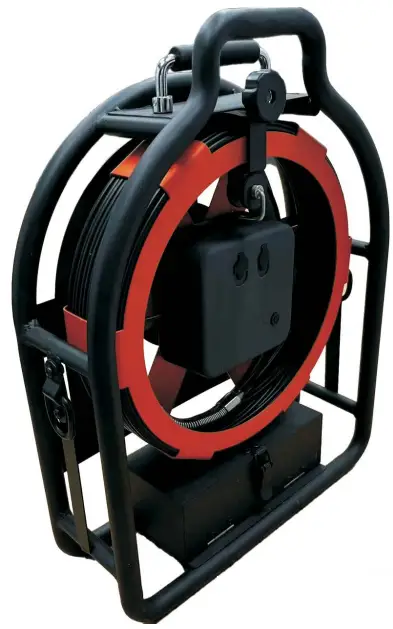
VIZTRAC TC801W Wireless Sewer Pipe Inspection Camera
Reminder!
Please read this user manual carefully before using the product.
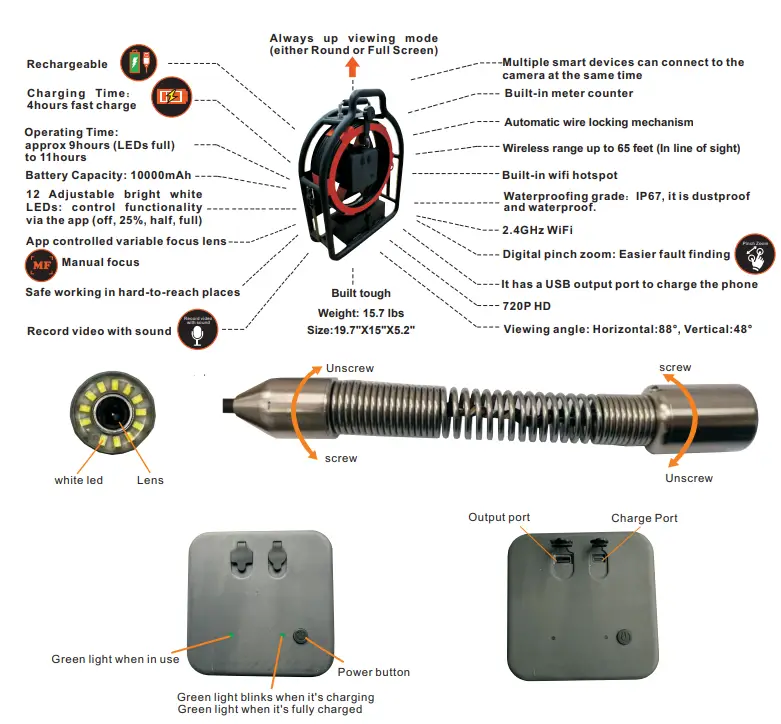
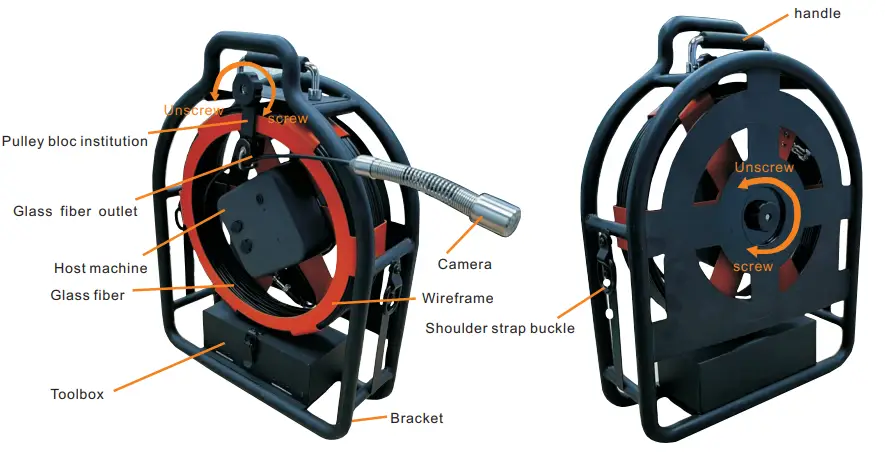
Product Instruction
App Installation
Download The Smartcam WiFi App :By searching for SmartCam WiFi in the
Google Play or Apple APP Store.
Note: On first use you need to give the App access to the gallery of photos and videos on your device to be able to allow you to save photos and videos.
Connect To Your SmartCam Camera.
-
Press the power switch button to turn on the power.
Note: When starting up, you need to press the power switch button for 3 seconds, the power indicator on the left side will first show green for about 5 seconds, and then off, after about 3 seconds, the power indicator on the left side will show green on, which means that the product is working normally.
Note: Ensure the camera is charged. -
Click on the SmartCam WiFi icon’’ ”,the following dialog box is displayed.
-
Click on “ok”,the following dialog box is displayed.
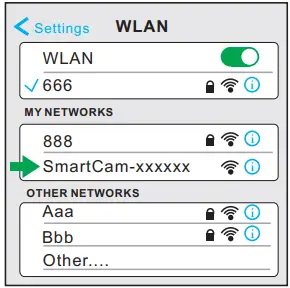
-
Search for a wireless name “Smartcam-X” in the wireless listing and click to select it. (No other WiFi network is needed)
-
Return to the APP home screen to watch the video.
SmartCam wiFi App Introduction
- SmartCam WiFi App home page function button introduction
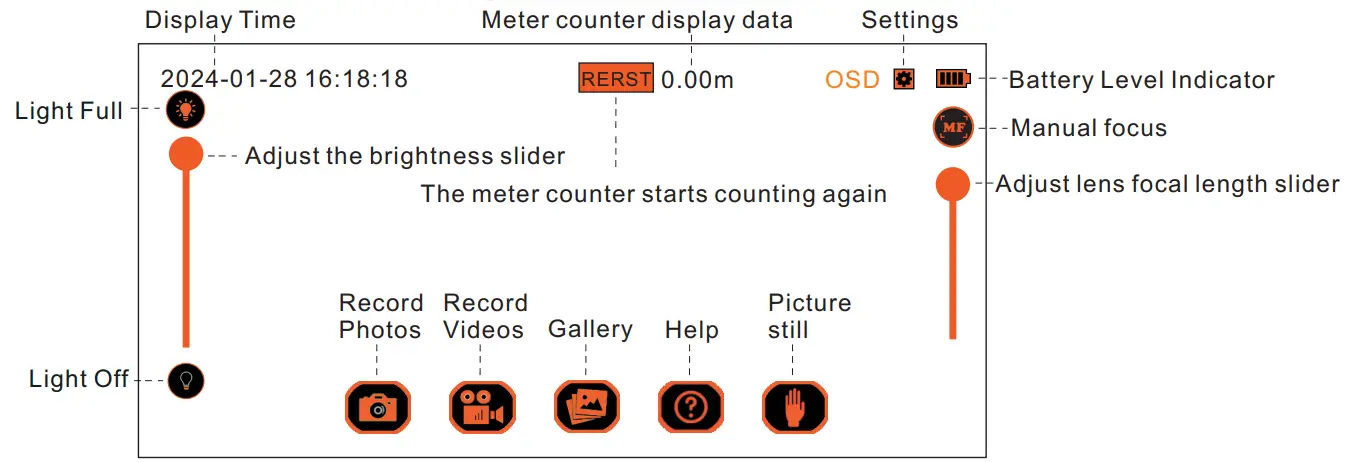
Brightness 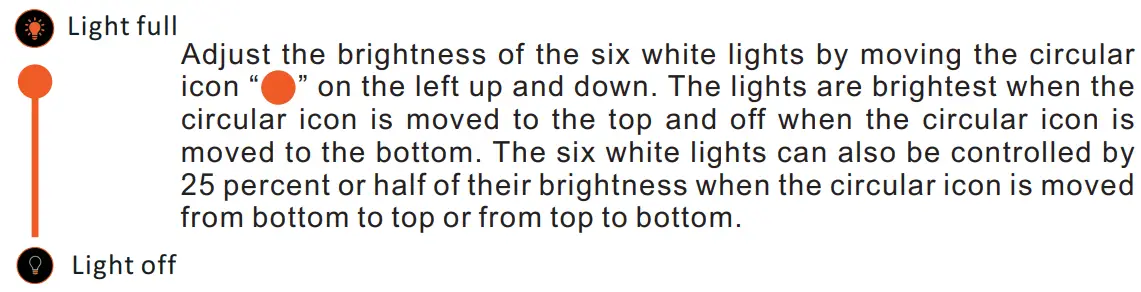
Record photos
- Click on the Camera icon to take a photo. Photos are saved on Phone by default.
Record videos
- Click on the Video icon to take a video. Videos are saved on Phone by default.
Gallery
- Click on the “Gallery” icon to access all pictures and videos taken with smartCam. click on the Gallery icon “ ”and the following interface will pop up:

- If you want to delete all the photos and videos stored on Phone through the smartcam wifi, click the Delete icon “ ” in the upper right corner of the interface. A dialog box will pop up asking you to confirm whether you want to delete them.
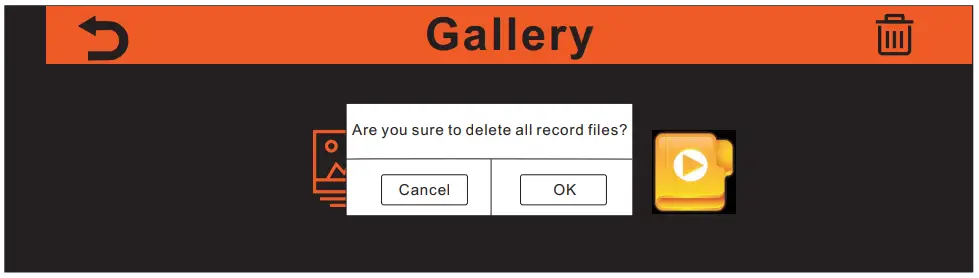
- If you’re sure you want to delete all the photos and videos, click the OK button. If you don’t want to delete them, click the Cancel button.
Note: If there are no photos or videos taken through the smartcam wifi in the the delete icon “ ” will not be displayed.
View photos
- Click on the photo file icon “ ”and the following interface will pop up:
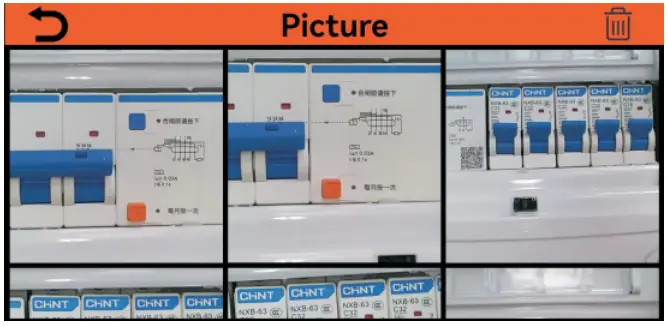
You want to see that photo, just click on the photo above, and it pops up.
Delete photo
If you delete a photo, do the following: 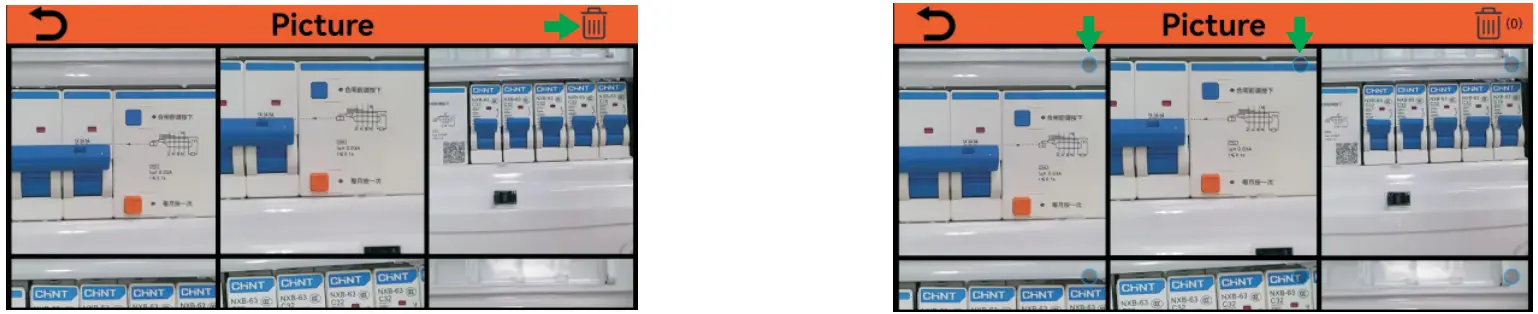
- Click the Delete icon “ in the upper right corner of the screen above.
- In the upper right corner of each video, a blue circle with a gray icon inside will be displayed, as shown in the screen above.
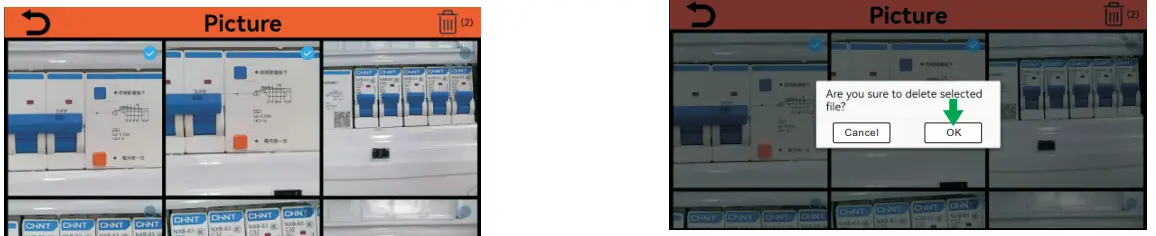
- Click on the blue circle in the top right corner of the photo you want to delete. The circle will turn blue and a white √ will pop up inside it. See the screen above. Click the Delete icon in the upper right corner of the interface again, and a dialog box will pop up asking whether you want to delete or not.
- If you’re sure you want to delete the photo, click the OK button. If you don’t want to delete the photo, click the Cancel button.
View videos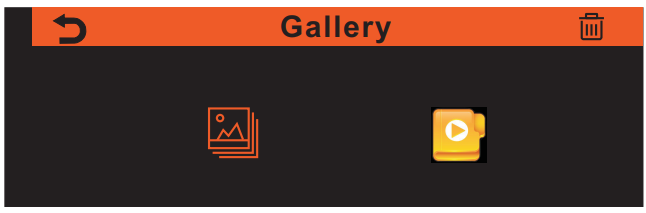
- Click on the video file icon “ ”and the following interface will pop up:
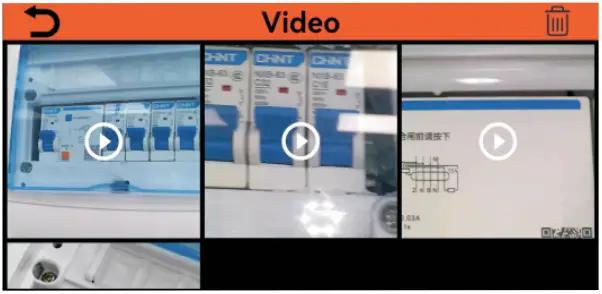
Directly tap the video file you are watching in the above screen, and the video will pop up and play automatically.
Delete videos
If you want to delete the video, do the following: 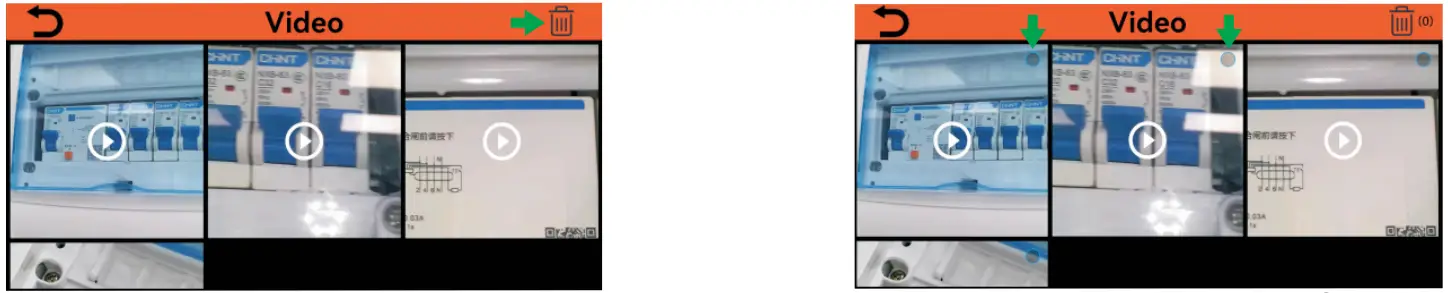
- Click the Delete icon “ ”in the upper right corner of the screen above.
- In the upper right corner of each video, a blue circle with a gray icon inside will be displayed, as shown on the screen above.
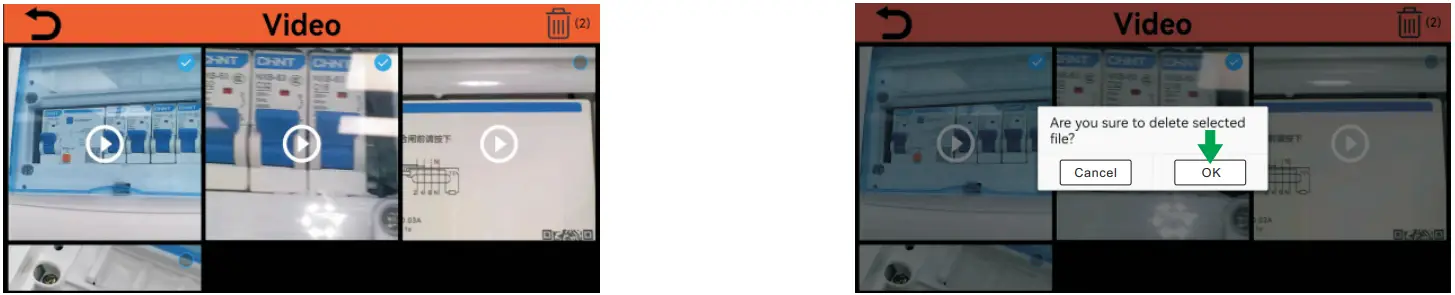
- Click on the blue circle in the top right corner of the video you want to delete. The circle will turn blue and a white √ will pop up inside it. See the screen above. Click the Delete icon in the upper right corner of the interface again, and a dialog box will pop up asking whether you want to delete or not.
- If you’re sure you want to delete the video, click the OK button. If you don’t want to delete the video, click the Cancel button.
Help
- Click on the “Help” icon to pop up the following interface:
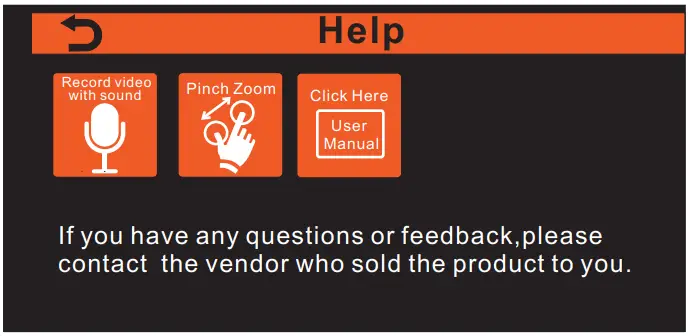
- Click on the “User Manual” icon and the user manual information will appear.
Picture still
- Click on the palm icon will generate a still photo, allowing you to decide whether to save the photo.
- Click on the palm icon and the following interface will pop up:
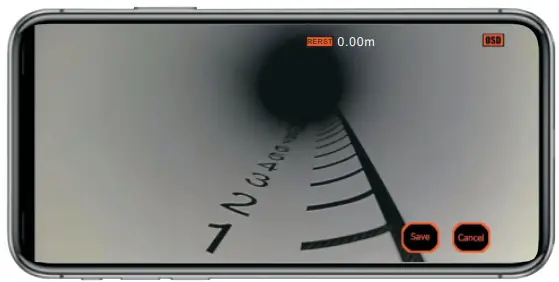
- Click on the Save icon if you think the photo looks good, or click on the Cancel icon if you don’t think it looks good.
Manual focus
- By moving the orange circular slider below the MF icon, you can adjust the focal length of the lens.
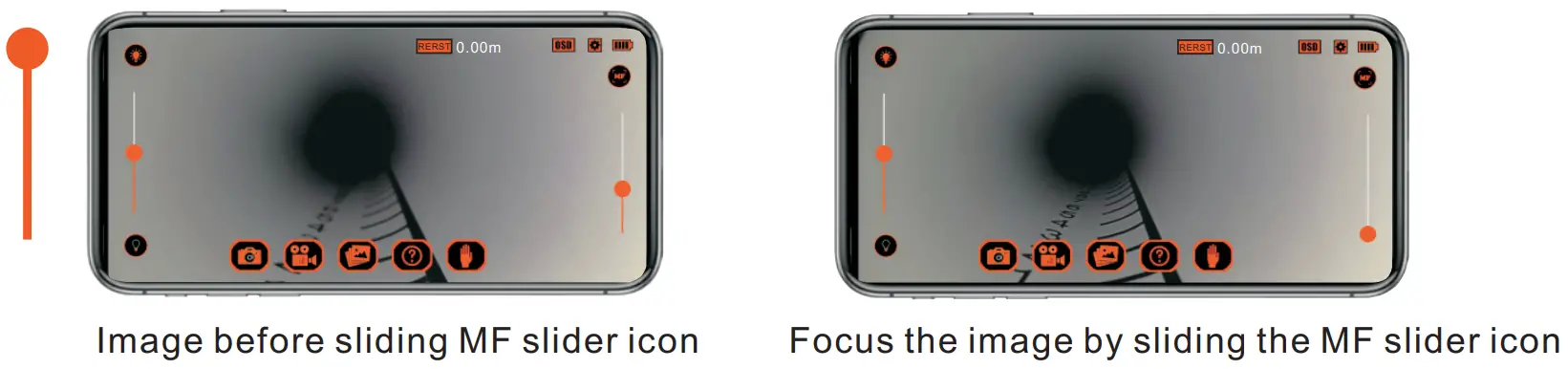
Battery Level Indicator 
Settings
- Through the setting interface, you can set the optical frequency, image display mode, and meter counter display unit mode. At the same time, you can see the firmware version and APP version information of the product in the settings interface. Click the setting icon, and the following interface pops up:
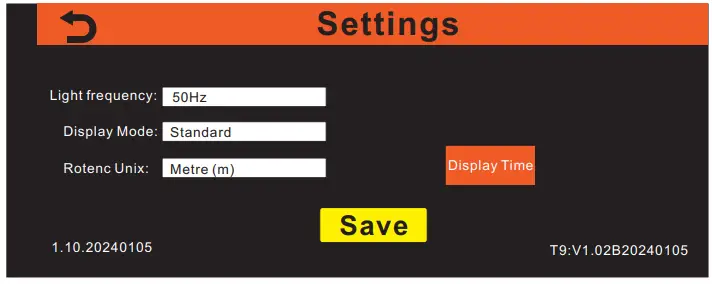
Note: After modifying any function in the setting interface, you need to click the Save button, so that the function can be modified successfully.
Light frequency
- It has two options for light frequency: 50Hz and 60Hz, as shown in the following interface.
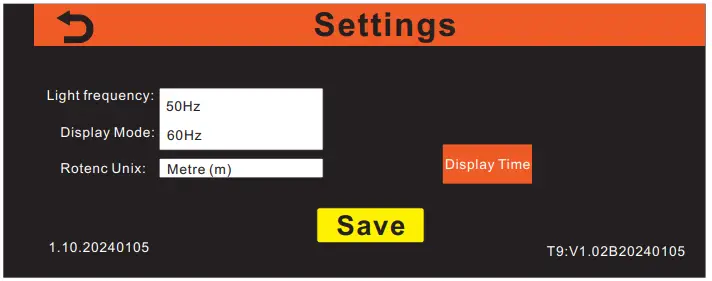
- The default frequency is 50Hz. If the frequency is 60Hz in your area, please select 60Hz and click the Save button.
Display Mode
It has three display modes: standard, always up round, and always as shown
in the following interface:
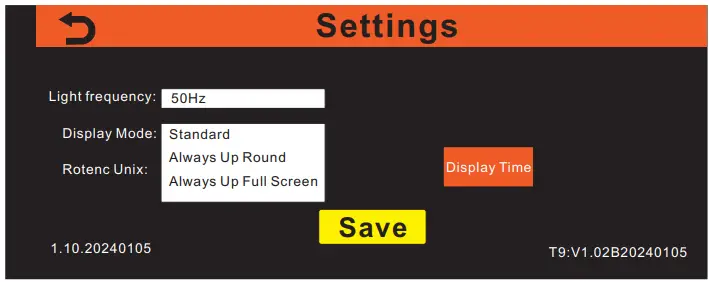
Standard Mode: the image on the screen rotates as the camera rotates. As
shown in the following picture: 
Always Up Round Mode: the image on the screen remains the right way up on
the app display, regardless of the camera’s orientation, And the video always
appears round. As shown in the following picture: 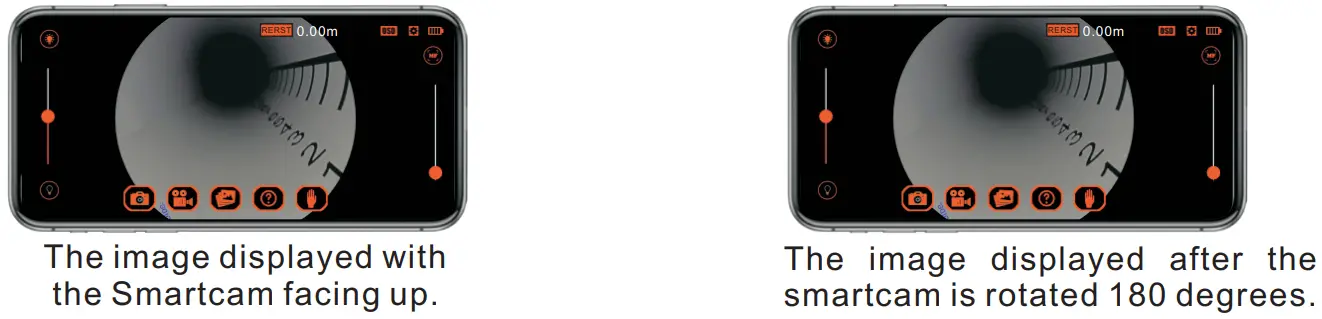
Always Up Full-Screen Mode: the image on the screen remains the right way
up on the app display, regardless of the camera’s orientation, As shown in the
following picture: 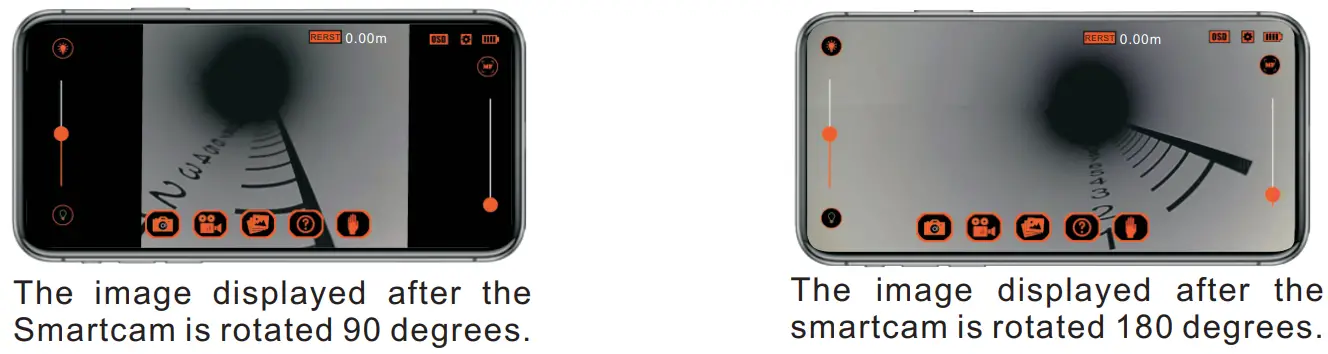
Rotenc Unix
Here represents the distance of the camera advancing or retreating through
the glass fiber, which has two display modes of meters (m) and feet (ft), as
shown in the following interface:
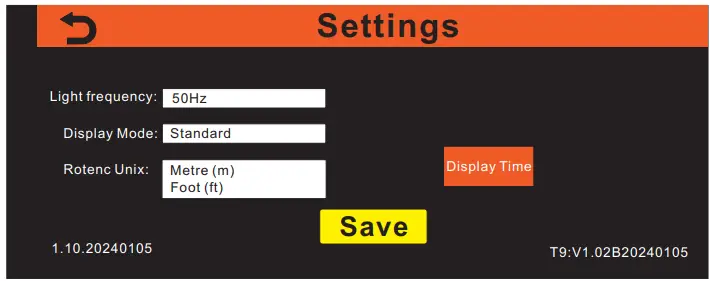
Metre (m): The meter counter data are displayed in meters on the APP interface, As shown in the following interface:
Note: The 2.18 meters displayed on the APP interface above means that the
camera has moved 2.18 meters forward through the glass fiber.
Foot (ft): The meter counter data are displayed in feet on the APP
interface, As shown in the following interface:
Note: The 7.15 feet displayed on the APP interface above means that the camera has moved 7.15 feet forward through the glass fiber.
RESET: Click on the RESET icon, and the meter counter data will take the current position as the starting position to start counting again, as shown in the following interface:
If you are sure to restart the count with the current position as the starting position click on OK, otherwise click on Cancel.
Display Time
- By setting the display time function, you can display the current time on the APP interface.
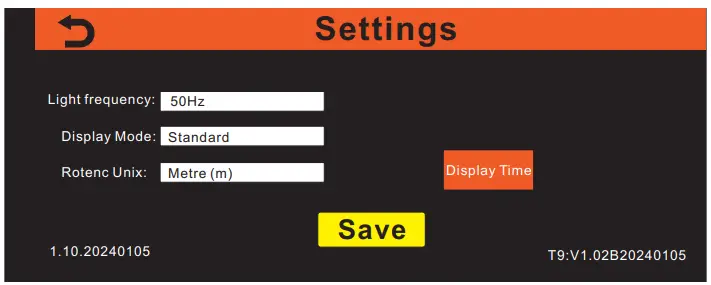
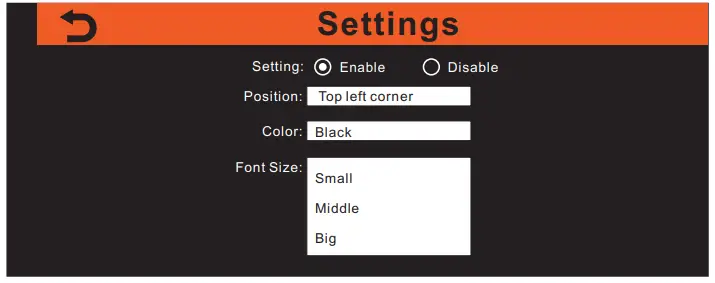
- Click the “Display Time” button, and the following interface will display as follows:
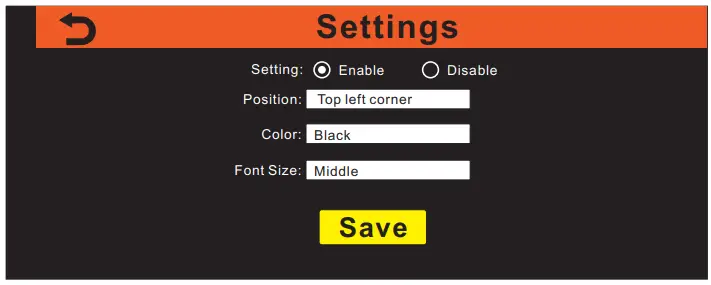
- Setting: There are two modes: enable and disable.
- Enable: If you select “Enable” and then click the Save button, the current time will be displayed on the APP interface.
- Disable: If you select “Disable” and then click the Save button, the current time will not be displayed on the APP interface.
Position
When the current time is displayed in the APP interface, there are four
positions displayed: Top left corner, Top right-hand corner, Bottom right-hand
corner and left lower corner.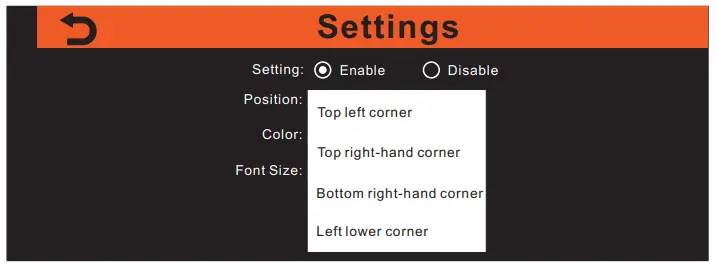
- The top left corner Indicates that the current time is displayed in the top left corner of the APP interface.
- The top right-hand corner Indicates that the current time is displayed in the Top right- hand corner of the APPinterfaceebottom to the right-hand cornerr indicates that the current time is displayed at the Bottom right- hand corner of the APP interface.
- The left lower corner Indicates that the current time is displayed in the left lower corner of the APP interface.
Color
his refers to the font color that displays the current time in the APP
interface. There are 16 colors available: Aqua, black, blue, brown, Dodge
Blue, gray, green, khaki, light green magenta, orange, pink, red, Slate blue,
white,and yellow.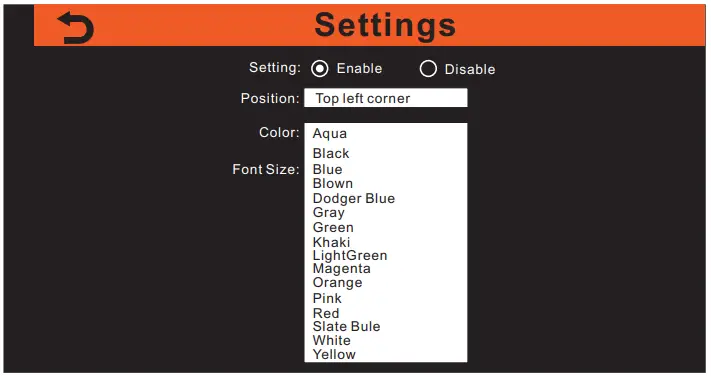
Font Size
This Refers to the font size that displays the current time in the APP
interface. There are small, middle and big three formats.
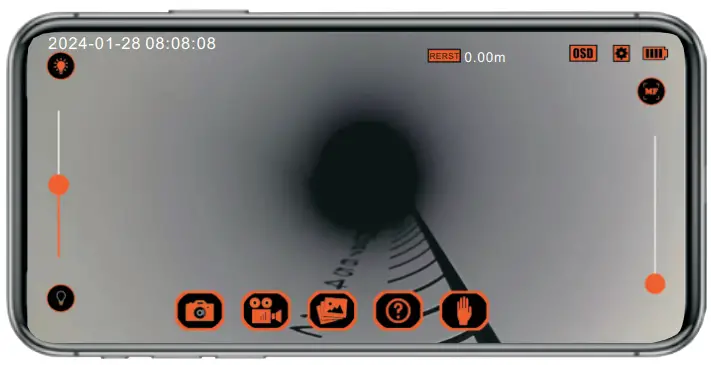
For example, the current time is displayed in the Top left corner of the APP interface, the font color is white, and the font size is middle. Then click the Save button. The APP interface is displayed as follows:
App Version
1.5.20240125 in the lower left of the Settings screen is the version of APP
smartcam wifi. This version is constantly changing.
Firmware Version
T9:V1:02B20240125 in the lower right corner of the Settings screen is the
firmware version of smartcam wifi product. This version number will change
after the product firmware upgrade
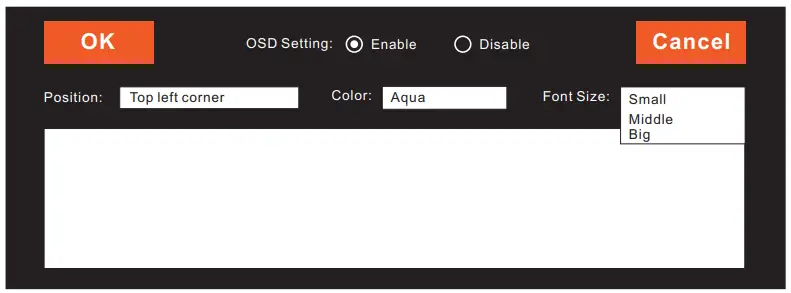
OSD
It is a function set for the convenience of users to record some
information. Click on OSD icon to pop up the following interface:
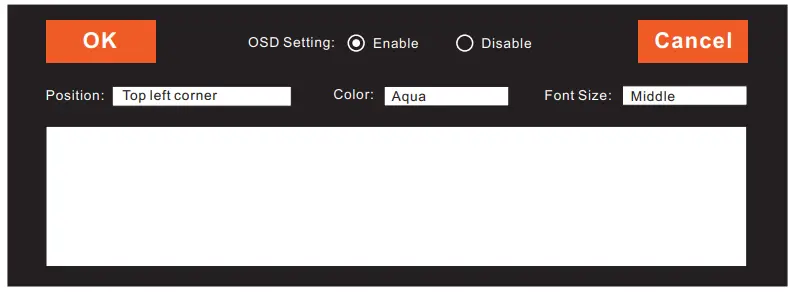
- OSD Setting: There are two modes: enable and disable.
- Enable : After selecting Enable, you can type the text you want in the white box, and then click the ok button, and the text will be displayed on the APP interface. If you do not want to display the text, click the Cancel button.
- Note : In the white box, limit each line to no more than 50 characters, no more than 10 lines, and no more than150 characters in total.
- Disable: After selecting Disable and then clicking the ok button, the APP screen will not display the text in the white box.
- Position: This refers to the position of the text in the white box when displayed in the APP interface. There are five types: Top left corner, Top right-hand corner, Bottom right-hand corner, Left lower corner and Center.

- Top left corner The text in the presentation box is displayed at the top left of the APP interface.
- Top right-hand corner the APP interface The text in the presentation box is displayed at the top right of
- Bottom right-handcorner The text in the presentation box will be displayed at the bottom right of the APP interface.
- Left lower corner The text in the presentation box will be displayed at the bottom left of the APP interface.
- Center The text in the presentation box will be displayed in the center of the APP interface.
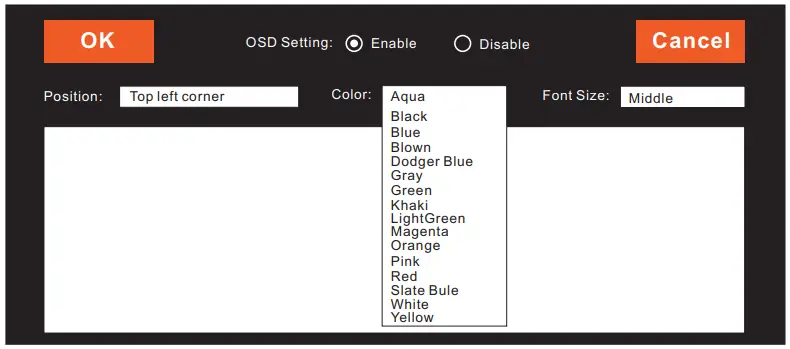
Color
It refers to the font color of the text in the white box of the OSD menu
displayed in the APP interface. Thereare16 colors available: Aqua, black,
blue, brown, Dodge Blue, gray, green, khaki, light green magenta, orange,
pink, red, Slate blue, white, yellow.
Font Size
It refers to the font size of the text in the white box of the OSD menu
displayed on the APP interface. There are small, middle and big three formats
.
For example, type in the white box: There is a crack in the top left of the
pipe. position Select center, the font color is white, the font size is
middle. 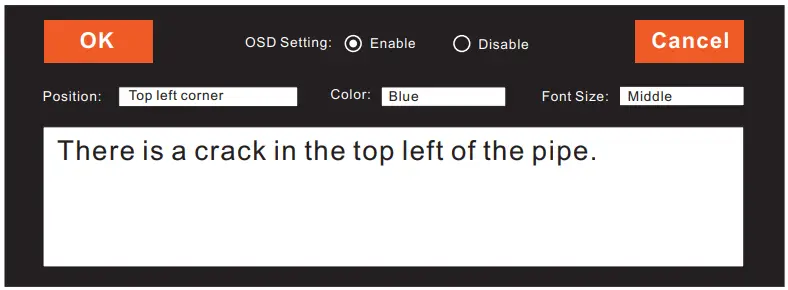
and then click the OK button. The APP interface will display as follows:
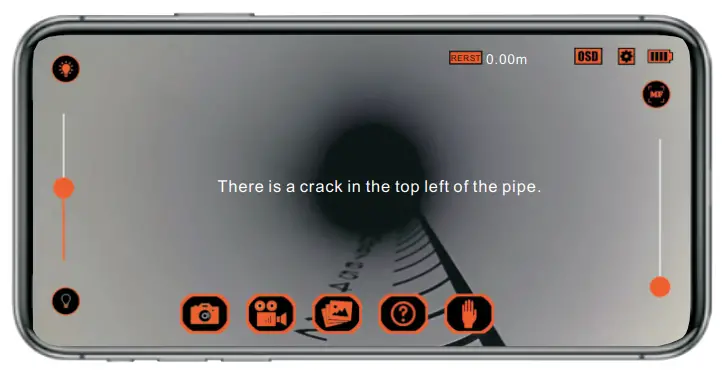
Note: After making any operational changes, remember to click OK.
Fast Charge
When the camera is charged, the icon” ****“ is displayed on the APP interface,
and the camera can be fully charged in 60 minutes. as shown in the following
interface: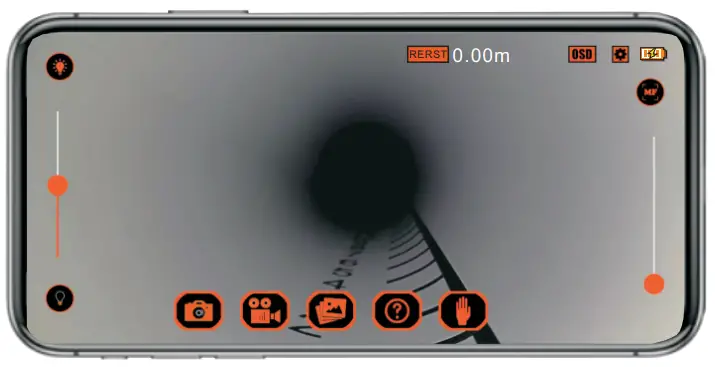
Record video with sound
- You can store both sound and video in a smart device. It can provide customers with accurate inspection reports.
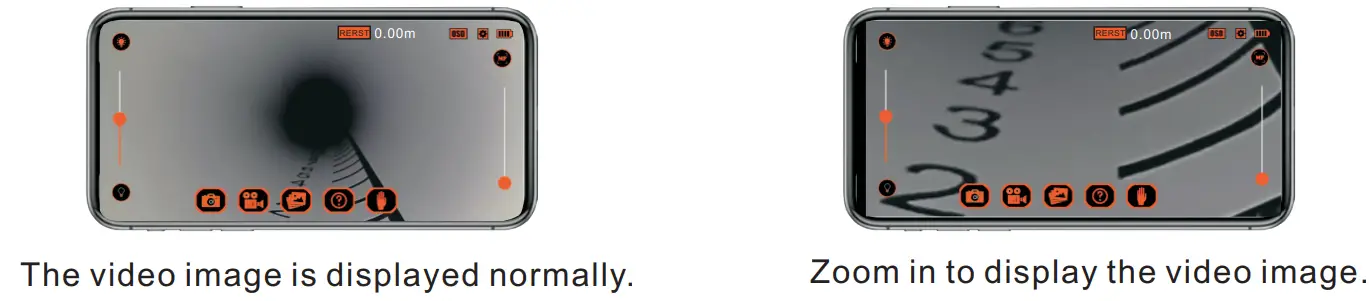
Digital pinch zoom
- Zoom in and out of an image by using two fingers to drag in and out of the smartcam wifi app screen.It can increases visibility and precision on inspections.
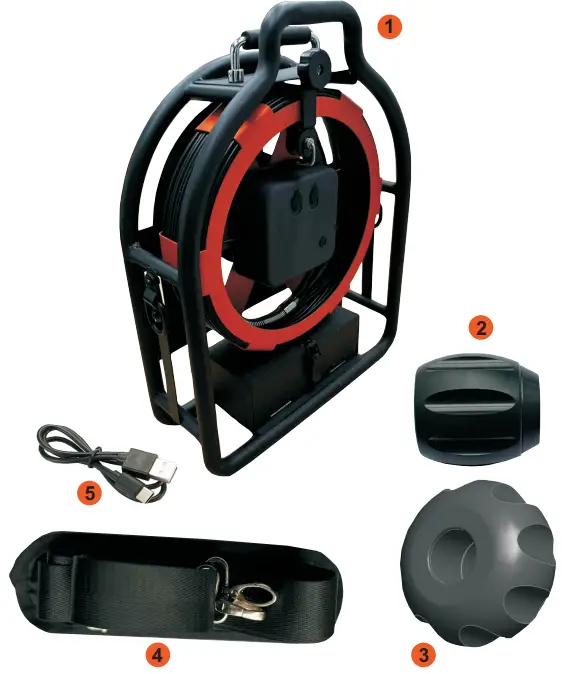
Packing List
- Wireless Sewer Pipe Inspection Camera
- Skid with an external diameter of 1.57″
- Skid with an external diameter of 3.15″
- 5.9′ shoulder strap
- Type C Charging Cable
Specifications
Wireless Smart Inspection Camera Specifications
Sensor Type| 1/3″ CMOS
Image Resolution| 720p (1280 x 720)
Lens| manual focus
Viewing angle| Horizontal:88°, Vertical:48°
Focal length| F=2.4mm
Aperture| F2.0
Wireless Range| up to 65 feet (In line of sight)
Frequency| 2412-2462MHz
Operating Time| approx 9 hours (LEDs full) to 11hours
Charging Time| 4hours fast charge
Battery Capacity| 10000mAh
Battery Type| lithium polymer
Charge Voltage| DC 5V
Adjustable bright white LEDs| 12 white – control functionality via the app
(off, 25%, half, full)
Waterproofing grade| IP67, When the back cover is tightened, it is dustproof
and waterproof.
Always up viewing function| When the camera rotates, The image can be set to
way up all the time
Record video with sound| Yes
Built-in meter counter| Yes
Glass fiber line length| 98.4 feet
Automatic wire locking mechanism| Yes
Charge Port| USB Type C
Output Port| USB
Operating Temperature| 32 °F to 104 °F
Storage Temperature| -4 °F to 122 °F
Dimensions of the small skid| φ1 .57″ X 1.68″
Dimensions of the big skid| φ3 .15″ X 1.73″
Camera Dimensions(W x D x H mm)| φ1 .1″ X 1.62″ ( The size of the spring
included in the camera is φ1 .1″ X 6.15″)
Product Dimensions(W x D x H mm)| 19.7″ X 15″ X 5.2″
Product Weight| 15.7 LBS
FAQS
Q: How many smart devices can connect to a camera to watch video at the
same time?
A: There is no limit on the number of smart devices connected to watch
videos, but the more smart devices connected to watch videos at the same time,
the slower the video will be. It is recommended not to have more than two
smart devices connected to the smart cam to watch videos at the same time.
Q: What does it mean that the video is striped?
- A: It’s because the battery is low. Please charge the camera right away.
Q: I can connect to the WiFi, but it won’t show an image in the iOS App?
- It shows an error message Error(100)(Connect the device time out!)
- Go to Settings-> Mobile Data-> Scroll down to find the SmartCam WiFi App and turn it off to prevent the App from trying to use mobile data.
I can connect to the WiFi, but it won’t show an image in the Android App? It shows an error message Error(100)(Connect the device time out!)
- Go to Settings-> Connections-> Data Usage-> Mobile Data Only Apps -> Scroll down to find the SmartCam WiFi App. Turn off background data to prevent the App trying to use mobile data.
Q: Can the smart cam cameras work underground, underwater, or inside metal pipes?
- A: Yes.
FCC STATEMENT
This device complies with Part 15 of the FCC Rules. Operation is subject to the following two conditions:
- This device may not cause harmful interference, and
- This device must accept any interference received, including interference that may cause undesired operation.
Warning: Changes or modifications not expressly approved by the party responsible for compliance could void the user’s authority to operate the equipment. NOTE: This equipment has been tested and found to comply with the limits for a Class B digital device, pursuant to Part 15 of the FCC Rules. These limits are designed to provide reasonable protection against harmful interference in a residential installation. This equipment generates uses and can radiate radio frequency energy and, if not installed and used in accordance with the instructions, may cause harmful interference to radio communications. However, there is no guarantee that interference will not occur in a particular installation. If this equipment does cause harmful interference to radio or television reception, which can be determined by turning the equipment off and on, the user is encouraged to try to correct the interference by one or more of the following measures:
- Reorient or relocate the receiving antenna.
- Increase the separation between the equipment and receiver.
- Connect the equipment into an outlet on a circuit different from that to which the receiver is connected.
- Consult the dealer or an experienced radio/TV technician for help.
FCC Radiation Exposure Statement
This equipment complies with FCC radiation exposure limits set forth for an
uncontrolled environment. This equipment should be installed and operated with
minimum distance 20cm between the radiator & your body.
Read User Manual Online (PDF format)
Read User Manual Online (PDF format) >>