
maonoCASTER AM-100 Audio Interface with DJ Mixer and Sound Card User Guide
- June 6, 2024
- maonoCASTER
Table of Contents
maonoCASTER AM-100 Audio Interface with DJ Mixer and Sound Card User Guide

Import Sound Effect to PC Companion App
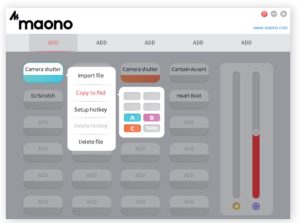
Right click an empty keypad and select “Import file” to import an mp3 audio file. Note: Way and other audio format is not supported
The Companion App stores up to 5 pages and 24 sound effects per page. Paces
can be renamed by double click the Page Tab.

Tips:
- Imported sound effects can be played by clicking them. To stop a playing sound effect, click the yellow icon on the bottom right corner.
- You can also assign a hotkey to each sound effect for convenient playback. Hotkeys can be disabled by clicking the purple icon on the bottom right corner.
Customize Jingle Pad on Maonocaster
Connect the Maonocaster to a PC with included USB-A to USB-C cable. The first
icon on the upper right corner will turn red from grey if the software detects
Maonocaster connection.

Right click an already imported sound effect and choose “Copy to Pad”. Then
select a pad you want to customize to start the data transfer.
Wait for the transfer to complete.
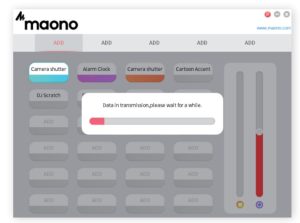
Note: Only first 30 seconds of each audio file will be transmitted to Maonocaster.
You can now use your customized sound effect on Maonocaster. Please enjoy.
Read User Manual Online (PDF format)
Read User Manual Online (PDF format) >>