
HGFRTEE B0C98D9YL3 Portable Monitor for Laptop User Guide
- June 12, 2024
- HGFRTEE
Table of Contents

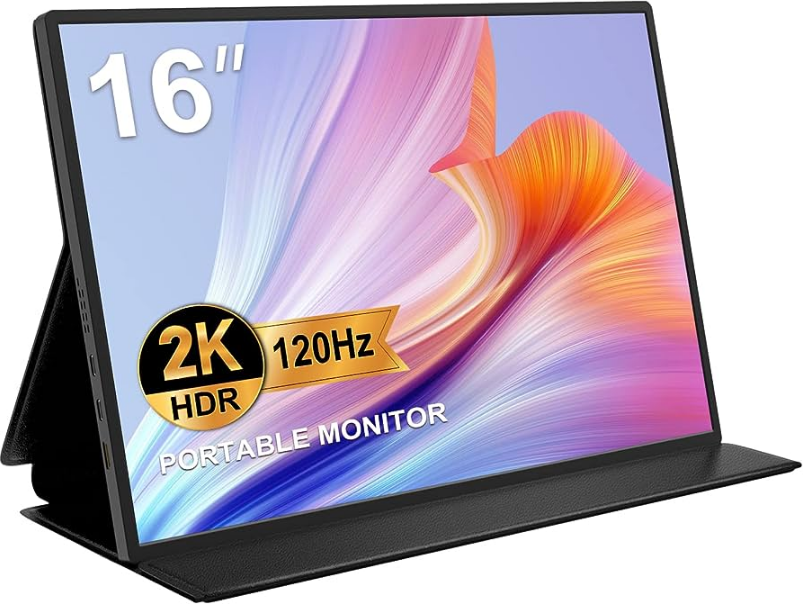
HGFRTEE B0C98D9YL3 Portable Monitor for Laptop
Function Keys&. Ports Introduction
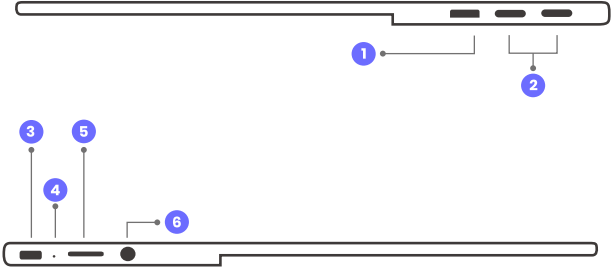
- MiniHDMI
- Full Function Type-C Port (For power, video, audio, and touch signal)
- Power Button
- Press the button for 5 seconds: Turn off
- Short press when on the menu: Go back to the previous step
- Power Indicator Light
- Multi-Function Key
- Press in the middle: Deploy the menu
- Scroll up/down: Navigate the menu
- 3.5mm Headphone Jack
Connection Method
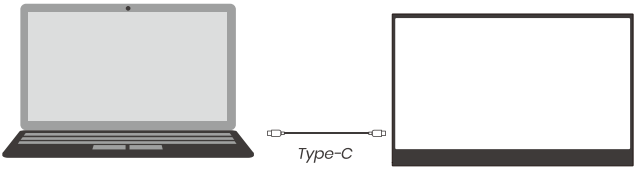
Full Function Type-C Mode
If your laptop supports USB Type-C 3.1 with PD protocol that can output audio
and video or Thunderbolt with a USB-C interface, you can connect the monitor
to your laptop via one USB-C to USB-C 3.1 cable.
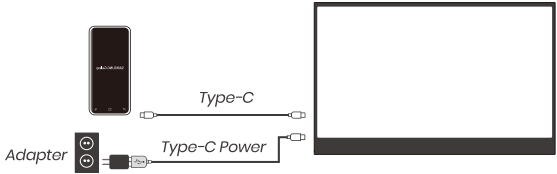
Samsung DEX Mode/Huawei EMUI Mode
HDMI Mode (For No Type-C Device)
- Connect with Laptop Desktop Computer
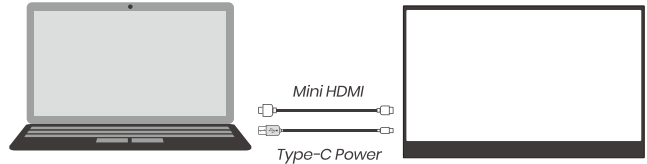
- For 1080P monitor, USB3.0 on the computer can supply the power
- For a 4K monitor, it is recommended to use an extra PD power
- Connect with PS4/PS5 or XBOX
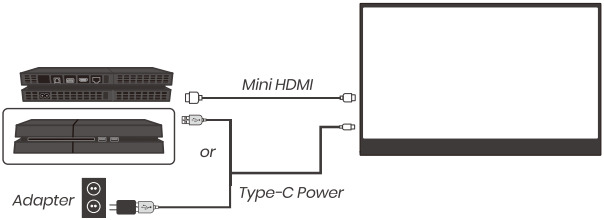
- The USB 3.0 on the PS4/PS5/XBOX can supply the power of 1080P monitor
- For a 4K monitor, it is recommended to use an extra PD Power
Nintendo Switch Mode
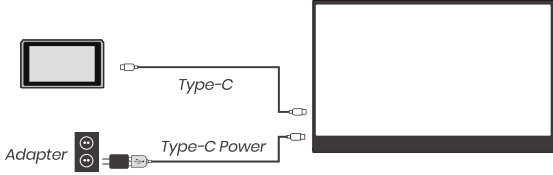
You can connect to your Switch via USB-C to USB-C 3.1 cable NOTICE: Extra power is required (use Switch Adaptor or others 60W)
- Connect with Switch DOCK
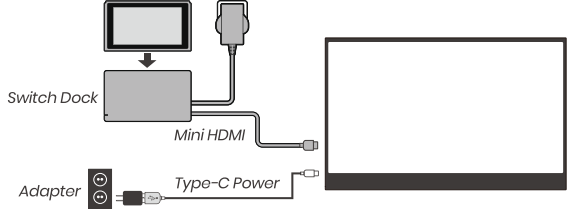
- 2. Connected with Switch by USB-C to USB-C cable
OSD Menu Introduction
- Adjust brightness by pulling the key up
- Adjust the volume by pulling it down
- Enter the menu and go to the submenu by pressing it
- Exit the menu and return to the previous menu by pressing the power button
How To Use The Smart Case
The case can protect the display from dust and scratches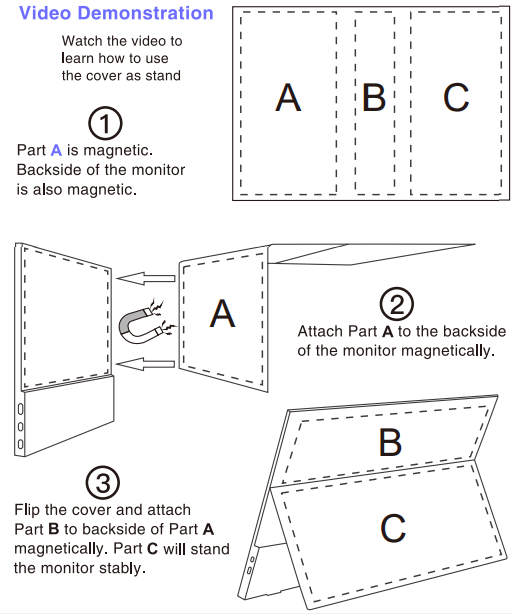
- Part A is magnetic. The backside of the monitor is also magnetic
- Attach Part A to the backside of the monitor magnetically.
- Flip the cover and attach Part B to the backside of Part A magnetically. Part C will stand the monitor stably
Warranty, Return ct Refund Policies
- The monitor is guaranteed for a lifetime When there’s a quality issue. the after-sales solutions include replacement, partial refund, and full refund. The warranty does not cover damage caused by human facto accident, misuse of the product, unauthorized alternation to or change of parts or components of the product, act of God, or problems of power supply.
- When you find some quality issues, please prepare some images and videos to prove it. Then contact us for technical support or after-sales solutions. We will reply within 24 hours.
Email US
Customer Support: suooorl@bolinia.com
Reverse Charging Function
When your monitor has connected to your device via the “Full Function
Type-C Mode”, you can charge your device by connecting an extra power adapter
via the ”Type-C Power Port”. 1. For 1080P monitor, DC 5V. 3A/9V. 2A or PD
5-20V power adapter is recommended.
Read User Manual Online (PDF format)
Read User Manual Online (PDF format) >>