
DARSTAR FT32 Smart Watch User Manual
- June 1, 2024
- DARSTAR
Table of Contents
DARSTAR FT32 Smart Watch
Appearance introduction
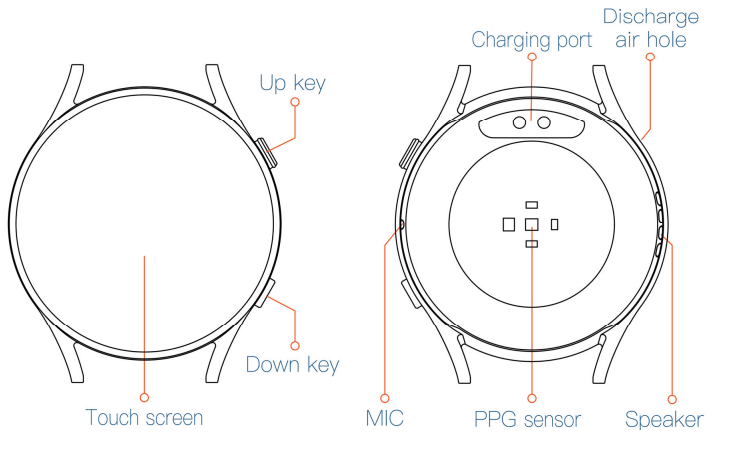 0peration for keys
Status/Operation Functions
Power off-Long press Up key| Power on
Main interface-Long press Up key| Power off
Screen off-Short press Up key| Screen on
Main interface-Short press Up key| Screen off
Secondary interface-
Short press-up key
| Return to the main menu
Secondary interface-
Short press Down key
| Back
Main interface: Short-press press Down key| Enter sport mode
Screen off-Short press Down key| Screen on
lnstall APP
Scan the QR code on the right or enter the APP market to download and install “DaFit”. (compatible system: Android 4.4/IOS 9.0 and above; Bluetooth 5.2)
Charging/ activation
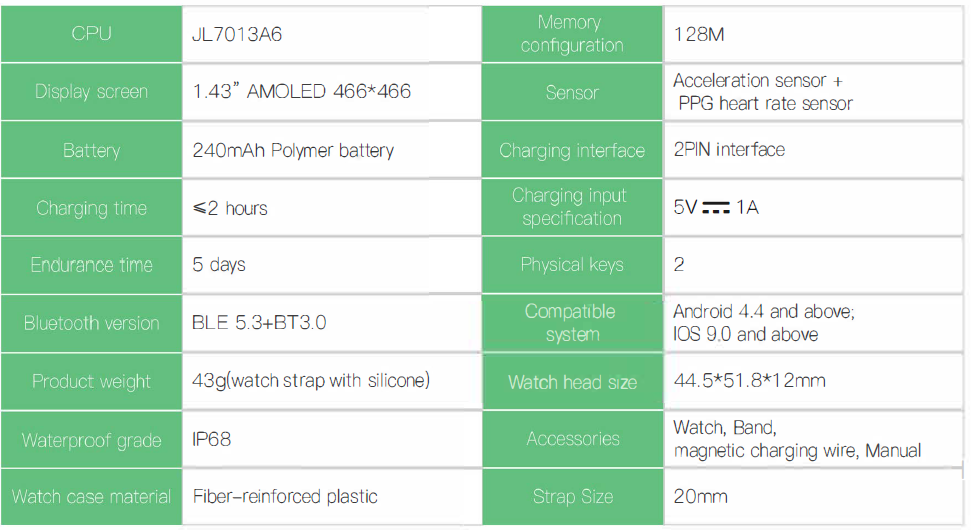
Please charge and activate the watch for the first-time. Connect the watch and magnetic charging wire according to the following figure, and connect the USB end of the charging wire to the power supply. (The watch will be fully charged around 2 hours.)
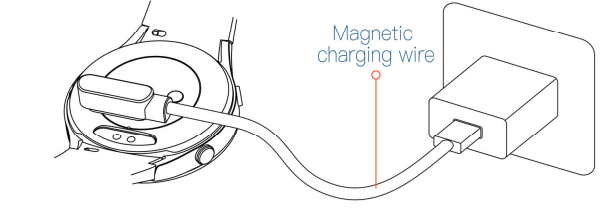
Connect the watch
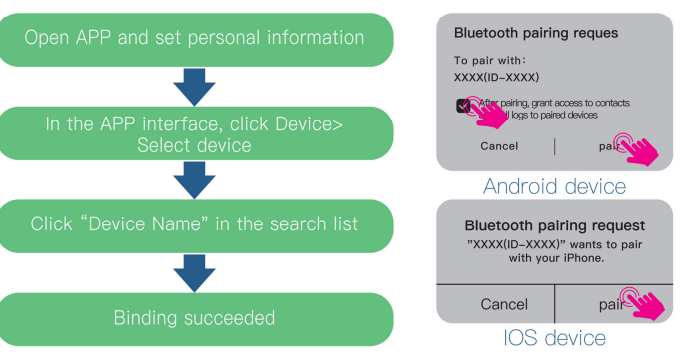
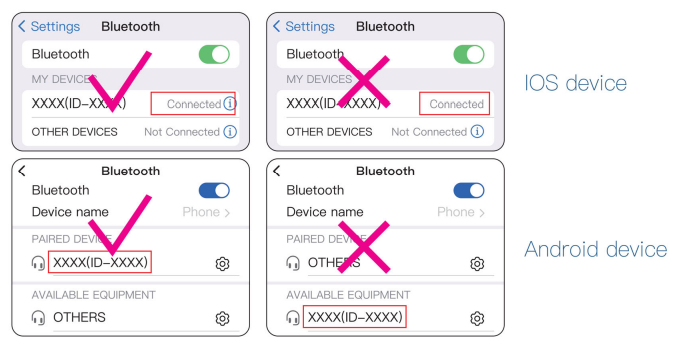
Please allow Bluetooth of the mobile phone to get connected with the APP of the watch, and check whether it (Settings> Bluetooth) is correctly paired with the watch based on the above figure, otherwise, the call function of the watch will fa i I to work.
Data storage
The watch can store 2 days of health history data; it retains up to 5 exercise history entries with cyclic overwrite, and the synchronized data with the app can be permanently stored on the local phone .
Operation for screen
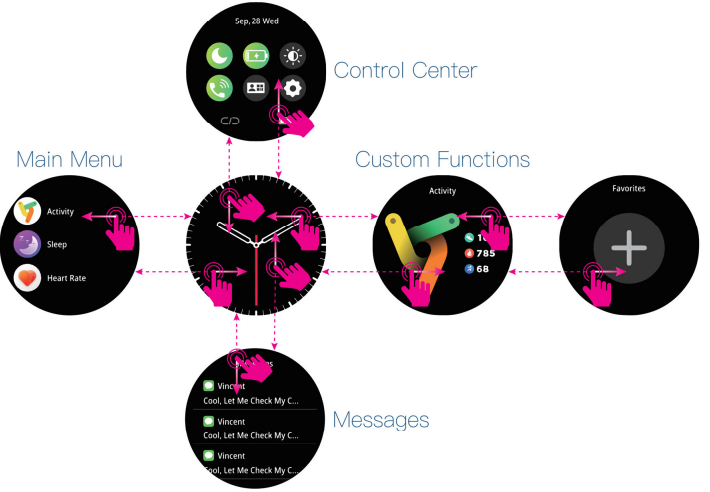
Motion monitoring
If a watch is worn normally, it will automatically monitor your steps,
distance, and calorie data. (the watch will clear data of the last day at 0:00
every day.)You can view the movement data a day at the home page of APP; click
the step counting module to view the detailed data and historical data.
Sleep monitoring
The watch will automatically monitor your sleep and analyze your waking time,
deep sleep, and light sleep. You can view the sleep data a day at the home
page of the sleep module; click the sleep module to view the data analysis and
historical data.
Measurement of health data
- The watch could measure relative health data after being changed to the following function interface.
- Keep the automatic measurement function “on” for the following functions in the APP, and then the watch will automatically measure relative health data periodically and continuously. (It will reduce the endurance of the watch if the automatic measurement works.)
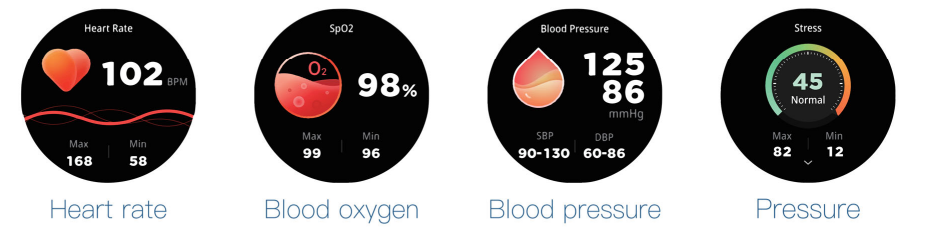
The current health data could be viewed on the APP home page. Click the corresponding module to check the data details and historical data .
Stress Relief and Sleep Aid
Switch to the stress relief or sleep aid interface, set the breathing
duration, and click start. Follow the on-screen prompts to engage in stress
relief or sleep aid training.
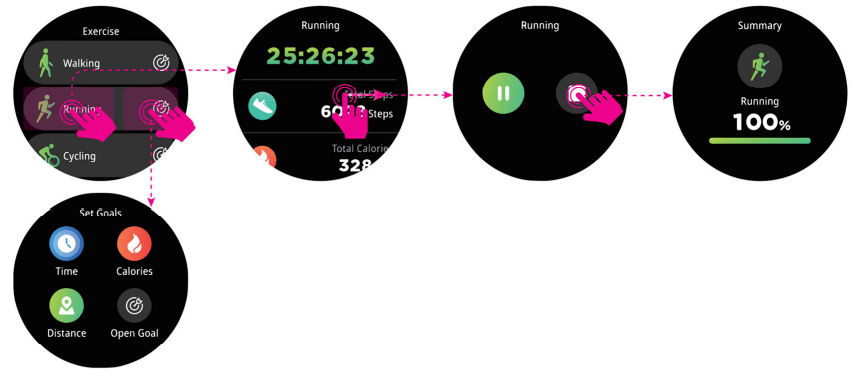
Sports mode
The watch supports more than 100 kinds of workouts. You can view the movement details and historical data through the APP movement module at the end of the training.
Message reminder
Keep the watch connected with the mobile phone, and turn on the message reminder function in the APP. When the mobile phone receives messages, the watch will vibrate to remind you and display the message content.
Call answering and ending
The watch is connected to the mobile phone, and the APP has enabled the call reminder function. When the mobile phone calls, the watch will vibrate and display the call number. Click the screen to choose to refuse or answer.
Making a phone call
Switch to the call function interface, you can make a phone call by entering a
number, selecting a call record, or choosing a contact.
Media audio
Turn on the media audio on the watch, and the music on the mobile phone will
be played through the watch speaker.
Voice assistant
Choose the voice assistant when the watch is connected to the mobile phone, and click the screen to say voice commands to the watch, such as “play music”.
Remote-control photography
If APP enters the camera function, shakes the watch to control the mobile phone to take photos, and the photos are saved in the mobile phone album.
Music control
Keep the watch connected to the mobile phone, switch to the music control
function, and click the Screen button to control the music playing, pause,
previous, and next of the phone.
Alarm clock
Set the alarm time and repetition period in the alarm interface of the watch, and the watch will give a periodic vibration reminder. (8 groups of alarm clocks allowed)
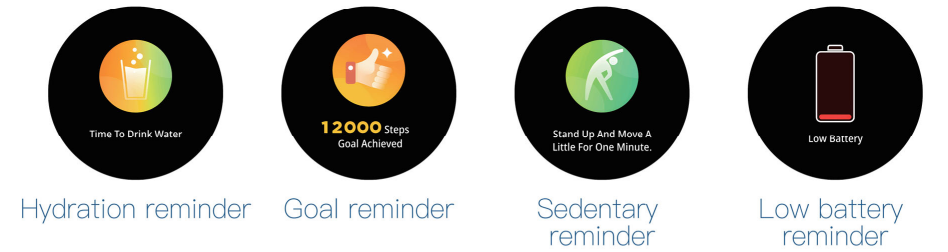
Reminder
When the reminder function meets the set conditions or the watch power is less than 1 0%, it will vibrate and display the following interface.
Menstrual Cycle
Female users are allowed to set the menstrual cycle info in the APP. The watch
will calculate and display the menstrual status of the current day if the
reminder function works. Such a function is not al lowed if the APP personal
info is set to be “male.”
Weather
When the mobile phone activates the cellular network and the watch is
successfully connected to the phone, the watch can display future weather
information.
Games
Click on the ‘Game’ menu to access mini-games
Theme
The watch can be customized with various theme menus
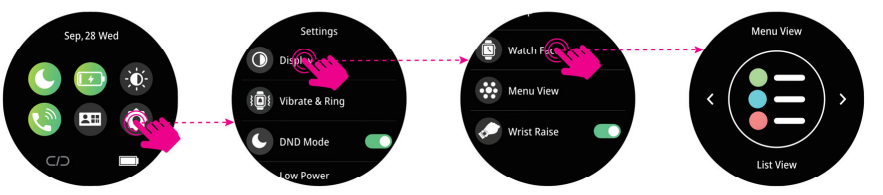
Change the dial
- Long press the main screen in the dial interface to change the watch face.
- Go to App–Oevice–Oash Board; in the dash board you can choose and download the dial in the dial center to the watch, or upload photos on your mobile phone to the dial interface.
screen lights up
Turn on the function ‘Light up” on the app. When wearing a watch, turn the
wrist inward or raise your hand; the watch screen will light up automatically.
No disturbance mode
You can set “No Disturbance mode’s” start and end time on the app and turn on
No Disturbance mode in the app or watch. In the specified period, the watch
will stop vibration and message reminders.
Power Saving Mode
Enabling the power saving mode will deactivate watch vibration, raise the
raise the wrist to wake, and reduce the screen brightness.
More functions
The watch provides convenient functions such as a timer, stopwatch, fmd phone, calculator, etc. To access these features, click on the corresponding icons in the main menu of the watch.

Cleaning and maintenance
-
If the watch gets wet due to hands washing or soaking in water, please gently swing the watch towards the sound outlet of the speaker and microphone in time to clear the water.
-
The watch does not support snorkeling, hot showers, saunas, diving, etc.
high-speed water f1ow, or deep-water activities. -
Avoid the watch from being hit seriously or falling to the ground, and avoid the collision caused by sharp objects.
-
Please keep watch and skin clean and dry. Try to avoid contact with sweat, soap, sunscreen, and other liquids.
-
Do not constantly expose the watch to the sun or receive external heating, such as a hairdryer.
Scan the QR code to download Da Fit.
This product is not designed to be a medical device, and is not intended to diagnose, treat, cure, or prevent any disease. All data and measurements should be used for personal reference only. All images on the packaging are for reference only, the actual product may differ from the images on the packaging (including but not limited to colors, shape, and screen display). Battery warning: Do not disassembie, puncture, crush, heat, or burn.
Made in China
All trademarks are the sole property of their respective companies
FCC statement
FCC Warning
This device complies with part 15 of the FCC Rules. operation is subject to the following two conditions:
- This device may not cause harmful interference, and
- This device must accept any interference received, including interference that may cause undesired operation.Any changes or modifications not expressly approved by the party responsible for compliance could void the user’s authority to operate the equipment.
Note: This equipment has been tested and found to comply with the limits for a Class B digital device, pursuant to Part 15 of the FCC Rules. These limits are designed to provide reasonable protection against harmful interference in a residential installation. This equipment generates and can radiate radio frequency energy and, if not installed and used in accordance with the instructions, may cause harmful interference to radio communications. However, there is no guarantee that interference will not occur in a particular installation. If this equipment does cause harmful interference to radio or television reception, which can be determined by turning the equipment off and on, the user is encouraged to try to correct the interference by one or more of the following measures:
- Reorient or relocate the receiving antenna.
- Increase the separation between the equipment and receiver.
- Connect the equipment into an outlet on a circuit different from that to which the receiver is connected.
- Consult the dealer or an experienced radio/TV technician for help.
The device has been evaluated to meet the general RF exposure requirement. The device can be used in portable exposure conditions without restriction.
Read User Manual Online (PDF format)
Read User Manual Online (PDF format) >>